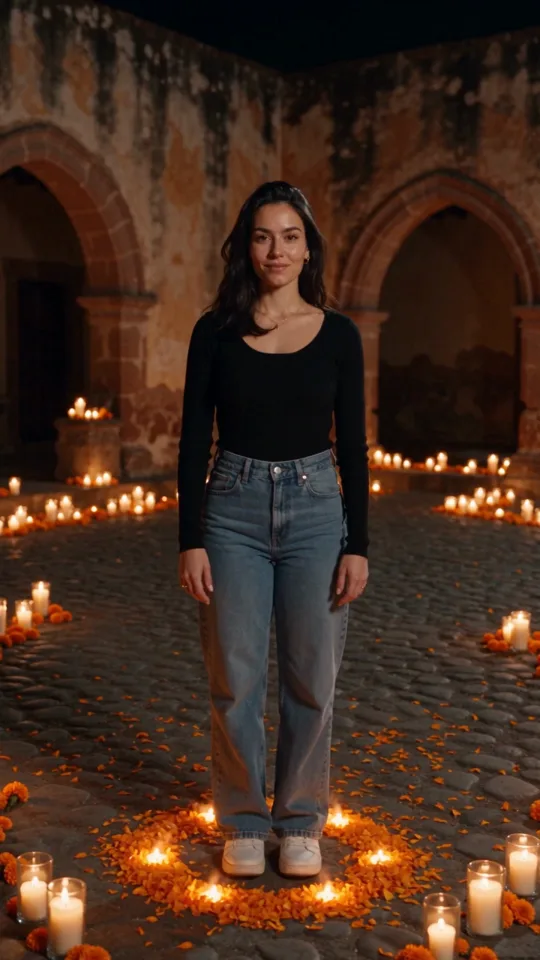
A product clip can look expensive and still fall flat the second a random soundtrack cuts in too early. The right AI video generator with sound controls gives you more than moving visuals. It gives you a way to decide how a moment lands: quiet and cinematic, fast and energetic, playful, tense, or built for the next scroll.
For creators making short-form work, sound is not a final export setting. It is part of the shot. A sneaker hitting pavement, a camera shutter, a beat drop before a reveal, or a clean stretch of silence can change the whole idea.
Why sound controls belong in the creation flow
Many AI video tools can generate motion from a prompt, source photo, or reference. That is useful for getting from concept to clip quickly. But if sound is treated as an afterthought, creators often end up exporting a visual, opening another editor, hunting for audio, trimming to the beat, and hoping the timing still works.
That workflow is fine when a project needs deep audio mixing. It is less useful when you need to test five campaign angles before lunch.
Sound controls bring earlier creative decisions into the generation flow. Instead of asking only, “What should this look like?” you can also ask, “What should the audience hear when the action happens?” For a five-second social clip, that decision may matter as much as the lighting, camera movement, or aspect ratio.
The level of control you need depends on the project. A quick trend-led post may only need a sound on or off setting and a clear way to add music later. A product launch, branded series, or multi-clip film may need audio direction at the shot level, room for ambient sound, and enough control to keep the tone consistent from scene to scene.
What to look for in an AI video generator with sound controls
The best setup does not bury creative choices under technical jargon. It turns them into decisions you already make: length, format, quality, sound, references, and prompt details.
Sound on, off, and intentional
Start with the basics. Can you choose whether the generated clip includes sound? That sounds small, but it gives you a clean path for different types of work.
Turn sound on when you want a fast concept that feels closer to finished. This is useful for a creator sketch, a mood piece, a comedic beat, or a visual where ambience helps sell the setting. Turn it off when you are building a cut around licensed music, recording a voiceover, or handing the clip to an editor who needs clean visual material.
The important part is that the choice is visible before generation, not hidden behind an export screen. You should know what you are making before credits are spent.
Prompt-level audio direction
Sound controls are stronger when the prompt can carry audio intent. A generic request such as “a coffee shop at night” may create an attractive clip. A more directed request such as “slow push-in on an empty coffee shop at night, rain tapping the windows, low room tone, no dialogue” gives the model a clearer creative target.
Keep the direction focused. Describe the sound that supports the visual, not every audio event in the scene. For example, “soft vinyl crackle and a distant train” is easier to work with than a paragraph of competing effects, dialogue, and music instructions.
If the tool does not produce exactly what you hear in your head, use the output as a creative test. You may learn that the shot needs less sound, a different pace, or a cleaner version for post-production.
Timing that works with clip length
Short videos have no room for slow setup. On a six-second clip, a sound cue that arrives two seconds late can miss the entire point. Look for generation settings that make duration obvious and let you match the concept to the available time.
A fast reveal benefits from a clear beat at the transition. A fashion loop may need an even rhythm that works from the first frame to the last. A cinematic establishing shot can hold on ambient sound longer, but only if the clip is long enough to create atmosphere.
Do not force every idea into the same duration. Make a short version for the hook, then build longer supporting scenes if the story needs space.
Format and sound work together
Vertical, square, and widescreen clips are not just crop choices. They change how people experience pacing and audio.
A vertical social clip is usually viewed quickly, often with sound toggled on and off depending on the platform and audience. Give it an immediate visual cue that still works silently, then use sound to add punch. A widescreen trailer or presentation clip can use more visual breathing room and a slower audio build. Square formats often suit product loops and feeds where the first second has to carry the concept.
Good sound controls should sit alongside format and duration settings, because those decisions shape each other.
Build the clip from a creative brief, not a vague prompt
A sound-aware prompt does not need to be long. It needs to establish the action, the mood, and the audio role.
Try this structure: subject and scene, camera or motion, visual mood, then sound direction. For example: “Chrome headphones floating above a cobalt pedestal, tight orbit camera move, glossy studio lighting, crisp electronic pulse with a single bass hit on the reveal.”
For a creator-led lifestyle clip, you might write: “Runner tying neon laces at sunrise, handheld close-up, quick cuts, city ambience and footsteps, no narration.” The details tell the generator what the audience should feel without turning the prompt into a production script.
References make this even more useful. A source photo can preserve the product, person, or setting you need. A visual reference can anchor color, styling, or composition. Then your prompt can focus on movement and sound rather than trying to describe everything from scratch.
This is especially valuable for recurring content. If a brand character, mascot, location, or product needs to appear across multiple clips, save those assets and reuse them. Consistency frees you to experiment with the energy of each scene.
Use sound controls for faster creative testing
The first output is rarely the final output. The advantage of AI video is the ability to compare directions quickly without booking a shoot, building a set, or waiting for a full edit.
Generate one version with energetic sound, one with soft ambience, and one without sound. Watch them with audio on, then watch them muted. The muted test matters because many viewers will encounter the clip in a feed without sound. If the idea only works because of audio, strengthen the first visual beat. If it works silently but feels generic with audio, make the sound direction more specific.
For teams, label outputs by the decision being tested: “fast beat,” “ambient,” “silent product loop,” or “dialogue placeholder.” Store the best clips with their prompts and reference assets. That small amount of organization prevents the familiar problem of finding a great visual later but not remembering how it was made.
A Studio workflow helps when one clip becomes a campaign. Build a multi-clip sequence, control individual shots, and keep your recurring assets close by. vbros is designed around that shift: rapid one-line generation when you need a quick idea, plus a Studio space when each shot needs a more deliberate role.
Know when to generate sound and when to add it later
Generated sound is ideal for concepting, quick social content, visual experiments, and scenes where ambience helps establish the world. It can make a rough idea easier to share with a client or teammate because the clip feels alive immediately.
Adding sound later is often the better choice for a campaign with approved music, a narrated explainer, a tightly edited comedy piece, or any project that requires exact brand audio. In those cases, generate the visual with sound off or treat generated audio as a reference track rather than the final mix.
This is not a limitation. It is a useful production choice. The goal is not to make every clip with one button. The goal is to move the right parts of creation faster while keeping control where it matters.
Make the next version, not the perfect prompt
A sound-aware video prompt is a starting point for a creative decision, not a test you pass or fail. Set the duration, choose the format, decide whether sound belongs in the generation, and make the clip. Then respond to what you see and hear.
If the reveal needs more impact, sharpen the sound cue. If the visuals already carry the moment, remove the audio and let the edit breathe. The fastest creators are not the ones waiting for a perfect prompt. They are the ones turning each generation into a clearer next shot.